




SavaSpin App: Casino Play on Mobile Device
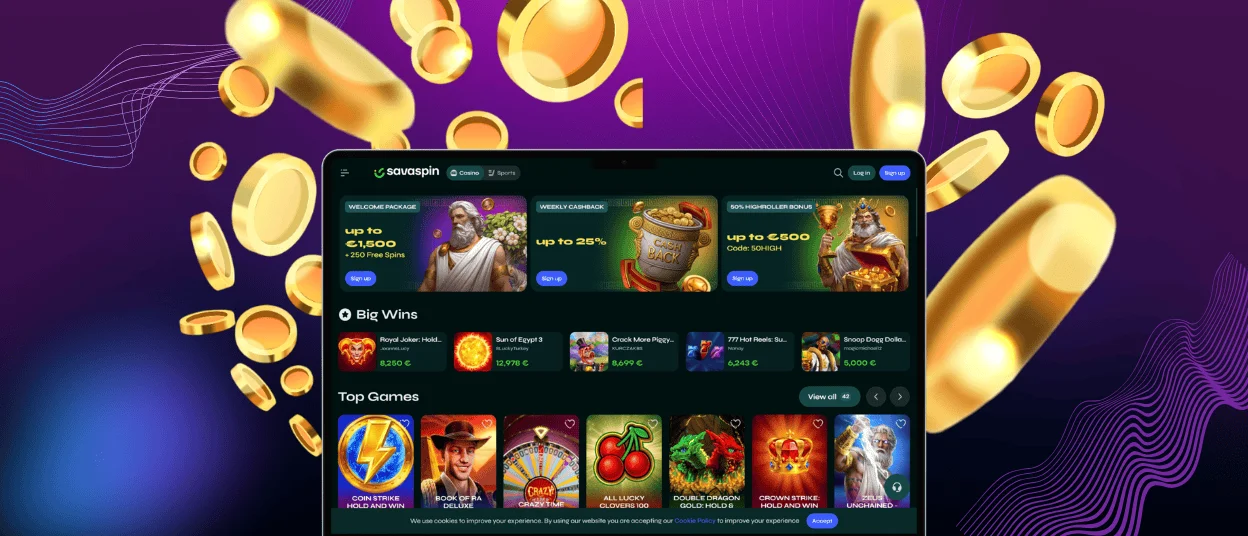
The SavaSpin app displays the entire casino in an icon on your home screen. You don’t need an app store account or a huge install file. It lands on your screen in under a minute and opens with a single press from then on. It has every game, bonus, payment method, and support channel from the desktop.

What Is a Progressive Web App?
A PWA is a casino website saved to your home screen, with an app-like design. It opens like a normal mobile app but still runs through the website. That’s crucial for safety. You do not need to look for SavaSpin APK files and download them from unknown pages.
Another useful detail is how updates work. The Sava Spin app loads the current version from the website each time it is opened, so new pages, fixes, game updates and interface changes appear without extra activity from you. The app is likewise relatively minimal in storage.
SavaSpin App: Benefits and Features
The SavaSpin Casino app and the desktop version are not identical experiences. Each format has situations where it works better than the other.
| Situation | SavaSpin App | Desktop |
| Opening the casino quickly | The home screen icon takes you straight to the platform | You open a browser and type the address or use a bookmark |
| Updates | The latest version loads from the website automatically | Also updates through the website, but without mobile-style app access |
| Safety | No APK files and third-party download risk | Safe if you use the official site directly |
| Verification process | Easier to take and upload document photos from the same device | More comfortable for reviewing details, but files need transferring |
| Payments | Full payments access, useful for quick deposits and withdrawal checks | Easier for longer forms and double-checking banking details |
| Notifications | Can support alerts depending on browser and device settings | Browser alerts are easier to miss |
| Short online slots sessions | Best option when you only want a few spins | Less convenient for quick play |
| Long sessions | Comfortable, but screen size can feel limiting | More relaxed for extended play |
The app does not create a separate Sava Spin account. Your balance, progress, favorite games, payment history, and verification status stay tied to the same profile. If you play on the desktop later, everything continues from the same account.
Mobile Interface
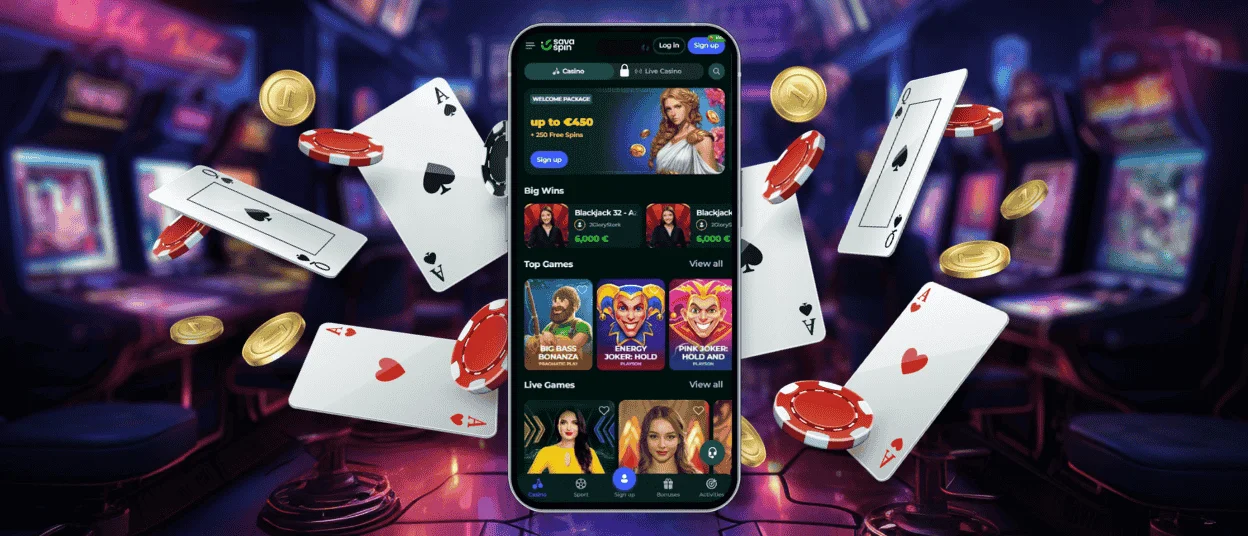
The mobile interface is a separate feature that was built for touch. You are not using the same screen as you see on the SavaSpin Casino desktop version. Buttons are sized for finger navigation, and the lobby reorganizes cleanly for vertical use. Switching between sections does not require precision tapping. Live casino games scale to fill the screen, and slot reels respond accurately to swipe and tap inputs without lag on older devices.
Sava Spin Application for iOS
iPhone and iPad users install SavaSpin Casino through Safari. It is the browser on iOS that supports the “Add to Home Screen” option properly. Open the casino website in Safari, tap the Share button at the bottom of the screen, select “Add to Home Screen,” confirm the name, and the icon appears on your device right away.
| iOS Detail | Why It Matters |
| Safari installation | The shortcut is created directly from the website. There is no App Store search or third-party file involved |
| Home screen icon | SavaSpin app opens with one tap, which is useful when you often play and do not want to type the website address every time |
| Face ID / Touch ID | Login becomes faster on compatible devices while still keeping access tied to your phone’s security settings |
| Apple Pay support | Deposits can be completed faster if Apple Pay is available in your region and account |
| Full casino access | Slots, live tables, bonuses, payments, and support team remain available from the same iOS shortcut |
Using the Sava Spin App on Android Devices
Android users can add SavaSpin Casino through Chrome in less than a minute.
- Open Chrome on your Android device. This browser gives the smoothest home screen shortcut experience for Progressive Web Apps.
- Go to the SavaSpin website. Wait until the page loads fully before starting the installation process.
- Tap the three-dot menu in the top-right corner. This opens Chrome’s browser menu with page tools and shortcut options.
- Choose “Add to Home Screen.” Android will prepare a SavaSpin app shortcut that works like a regular app icon.
- Confirm the name of the shortcut. You can keep the default name or make it shorter if you prefer a cleaner home screen.
- Tap “Add.” The icon will appear on your home screen in seconds.
- Open the app and log in.
Play on Mac or Windows
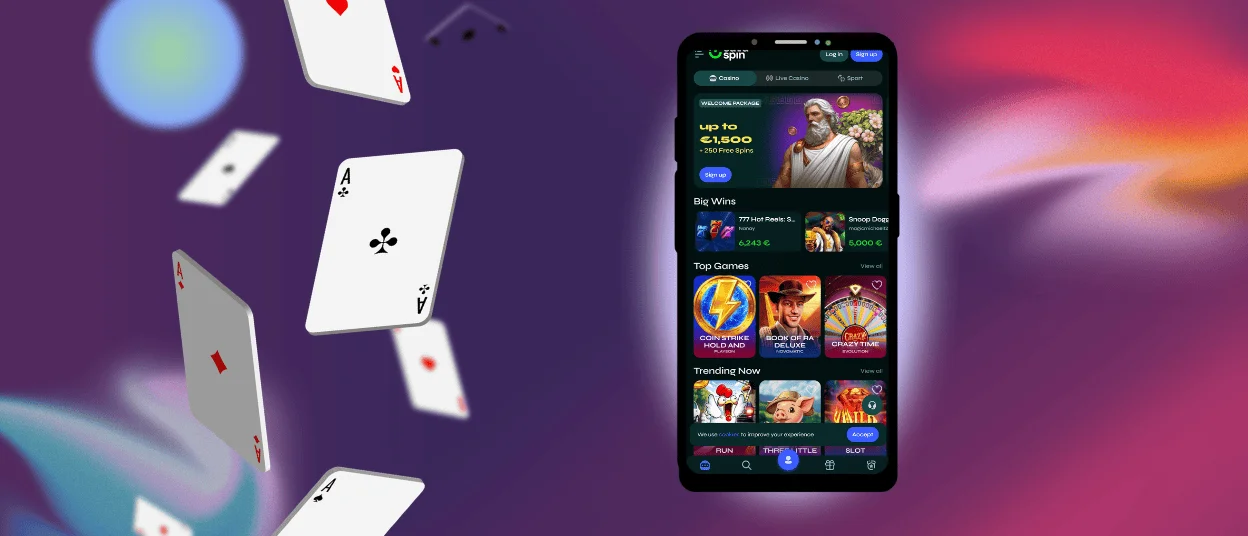
The PWA format works on desktop computers too. When visiting the Sava Spin Casino website in Chrome, a small install icon appears in the browser address bar. Click it and confirm to create a standalone application entry – separate from the browser, opening in its own window with full-screen capability and a taskbar or dock shortcut.
For players who spend time at live casino tables or high-stakes formats where screen size matters, the desktop SavaSpin app removes the browser frame and gives more usable space than a phone provides. Push notifications work on the installed desktop version as well.
Tips for a Better Mobile Gaming Experience
A few habits make a meaningful difference to how the SavaSpin app performs session to session.
- A stable Wi-Fi connection is the most important for a live casino. Streams are video-intensive and mobile data fluctuates during commutes.
- An up-to-date browser on Android helps the PWA install and run correctly; older versions occasionally have compatibility quirks.
- Keeping the device charged above 20% before a longer session avoids the performance slowdown.
- The SavaSpin Casino app is not very heavy on your device, however, clearing your browser cache will help to maintain consistent loading times over time.
FAQ
Which browser should Android users choose for SavaSpin app setup?
Chrome is the most reliable option for Android installation. The “Add to Home Screen” prompt appears consistently in Chrome’s menu, and the SavaSpin Casino PWA installs without compatibility issues. Other browsers like Firefox and Edge work for accessing the site. For iOS installation, use Safari.
Does the Sava Spin app create a separate mobile casino account?
No. The app connects to the same account used on desktop. Balance, bonus progress, transaction history, saved payment methods, live chat and game favorites are in one place regardless of which device was used most recently. There is one SavaSpin account per player, and the app is just another way to access it.
Can I remove the app shortcut without closing my account?
Removing the icon from the home screen deletes the shortcut only. The SavaSpin Casino features and history remain completely intact. Reinstalling the app from the website and logging in restores full access immediately.
Does the Sava Spin app update automatically?
Yes. The PWA loads the current version of the platform each time it opens. New games, updated promotions and any interface changes appear automatically on the next launch.


